Overview
If you want to display sensitive information (such as card numbers or PINs) in your front-end, you’ll need to interact with our Partner Secure Elements (PSE) service. The easiest way to do this is by using the PSE SDK from Gnosis Pay. To initialize the SDK, you’ll need:- An
App IDprovided to you upon registration with Gnosis Pay - An ephemeral-token retrieved from the PSE private API using mTLS authentication
- An auth module token obtained through the SIWE authentication flow
- An EIP-712 signature and nonce obtained from the challenge flow described below
PSE version 3 adds an EIP-712 wallet signature as a second factor for every sensitive operation. Pass
pseVersion: 3 when constructing the SDK and include eip712Signature and eip712Nonce obtained from the challenge flow described below.Note: pseVersion refers to the PSE SDK protocol version and is unrelated to the Gnosis Pay API path (which remains /v2).Secure Connection Using mTLS Authentication
Mutual TLS (mTLS) is a type of authentication in which two parties in a connection authenticate each other using the TLS protocol. Your back-end will establish an mTLS authentication with the Gnosis Pay private PSE API to receive an ephemeral-token.How to Generate mTLS Certificates
After signing up through the Partners Dashboard, you will receive anApp ID instantly, which will be used in the certificate generation below. You must first create a private key and then generate a Certificate Signing Request (CSR) using the App ID as follows:
${APP_ID}.csr.pem file with the Gnosis Pay team. DO NOT EVER share the .key.pem file with ANYONE.
Once we receive your Certificate Signing Request, we will sign it and send you back the signed certificates. These signed certificates, along with your private key, are used to establish the connection with the PSE API.
How to Establish an mTLS Authentication (in Node.js)
You should securely store the certificates in your environment along with your private key. Your environment should expose the certificates and private key, for example:The ephemeral-token, as its name suggests, is valid for a very short time
frame. It is advised to generate a new one for every usage of the SDK.
EIP-712 Two-Factor Authentication
PSE version 3 requires a wallet signature before each sensitive operation. This acts as a second factor: even if anauthModuleToken is compromised, an attacker cannot view card data or change a PIN without also controlling the user’s wallet.
How It Works
Before initializing the SDK, your front-end must:- Request a one-time challenge from the auth module.
- Ask the user’s wallet to sign the returned EIP-712 typed data.
- Pass the resulting signature and nonce to the SDK constructor.
The Challenge Endpoint
action parameter determines which operation is being authorized:
The response is a complete EIP-712 typed data object, ready to pass directly to
signTypedData:
message.nonce is returned as a decimal string representing a uint256.
Convert it to BigInt before passing it to signTypedData.Signing the Challenge
How to Use the PSE SDK
Installation
Backend: Ephemeral Token Relay
Your backend needs an endpoint that proxies ephemeral token requests to the PSE private API using mTLS. Here’s an example using Express:CLIENT_CERT and CLIENT_KEY are the base64-encoded signed certificate and private key stored in your environment variables.
Frontend: Initialize the SDK
After completing the EIP-712 challenge/sign step above, initialize the SDK withpseVersion: 3:
Display Card Details
UseElementType.CardData to display the full card number, expiration date, and security code.
Use
action: "view-details" when fetching the EIP-712 challenge for this element.View Card PIN
UseElementType.CardPin to display the card’s current PIN inside the secure iframe.
Use
action: "view-pin" when fetching the EIP-712 challenge for this element.Set / Change Card PIN
UseElementType.SetCardPin to render a PIN entry form that lets the cardholder set or change their PIN.
Use
action: "change-pin" when fetching the EIP-712 challenge for this element.Refresh Ephemeral Token
If you need to refresh the ephemeral token without re-creating the SDK instance:Callbacks
The SDK provides three callbacks to handle events from the iframe:How to Customize the Style of Secure Elements in the iframe
For security reasons, the only way to apply custom styling to iframe elements is to prepare and share a CSS file with the Gnosis Pay team. This file, named<partner_name>.css, will be incorporated into the iframe.
Standard styling is applied to the iframe elements by default. You can override the style of these classes and IDs as needed. Here are some of them:
Card Data
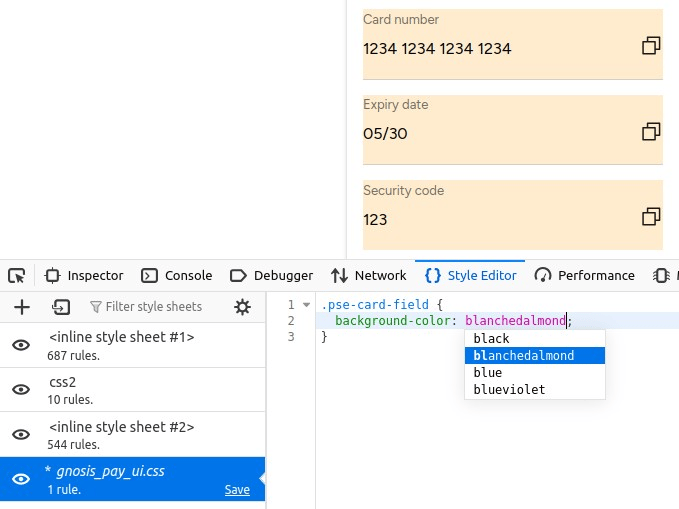
.pse-container- A shared class for all iframe containers.#pse-card-data-container- The main container for displaying card data..pse-card-field- The container for each card data field (card number, expiry date, security code)..pse-card-label- Labels for each field..pse-card-value- The container for the actual card data values.
Styling Guide
Here is a suggested workflow to customize the styling:- In your front-end, load the element you wish to customize (e.g., the card data).
- Locate the custom CSS file with your name in either the “Style Editor” in Firefox or the “Sources” panel on Chrome/Brave. In the example below, the file is
gnosis_pay_ui.css. - Apply your desired styling. The changes will be reflected in your interface immediately.
- Save the file and send it to Gnosis Pay for application in production.
.pse-card-field class in Firefox: